Get goal alerts on your phone: the step-by-step Oddsivio setup guide
Oddsivio can notify your phone the moment your team scores — no app store, nothing to pay. Every tap for iPhone and Android, plus an honest troubleshooting list for when notifications go quiet.
Oddsivio can send a notification to your phone the moment one of your teams scores — plus kick-off, full-time, disallowed goals, and a ping when the goal clip is ready to watch. No app store, no download, nothing to pay: the site itself installs to your home screen and behaves like an app.
This guide walks through the whole setup — iPhone and Android, with every tap — and ends with a troubleshooting section for the handful of things that genuinely go wrong.
Two kinds of alert, so the rest of this guide makes sense:
- In-app alerts — toast cards (and an optional chime) that appear while you have Oddsivio open. These work in any browser, on anything, with zero setup beyond turning them on.
- System notifications — real phone notifications that arrive when Oddsivio is closed: lock screen, banners, the works. These need two things: the site on your home screen (on iPhone) and your permission (everywhere).
What you'll need first: an account and a star
Alerts fire only for teams and matches you've starred — that's the design, and it's why Oddsivio will never spam you about a league you merely browse. Starring needs three things:
- A free account — stars sync across your devices, so alerts need to know they're yours.
- A verified email — the star button stays disabled until you've clicked the link in the confirmation email. If starring seems broken, this is almost always why.
- At least one starred team or match. Note the fine print: starring a competition adds it to your browsing shortcuts but deliberately does not trigger alerts. Alerts come from starred teams and starred matches only.
To star a team: open its page and tap the star in the header. To star a single match — tonight's derby, say, between two teams you don't otherwise follow — tap the star on the match page.
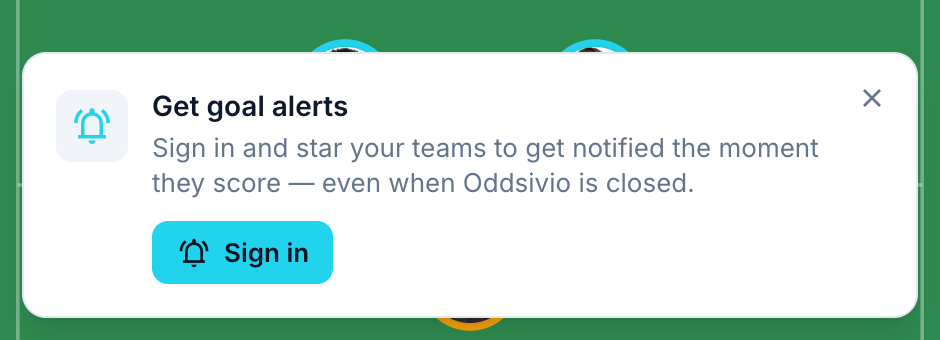
Until this is set up, Oddsivio will occasionally offer you the shortcut itself, at the bottom of match pages:
Part 1 — iPhone and iPad: add Oddsivio to your Home Screen
On iPhone, Apple only delivers web notifications for sites that live on your Home Screen — a plain Safari tab can't receive them when it's closed. That's an Apple rule (iOS 16.4 and newer), not an Oddsivio quirk, and the fix is a one-time 20-second ritual:
- Open oddsivio.com in Safari (any iOS browser works — they're all Safari under the hood).
- Tap the Share button — the square with the upward arrow, bottom-centre of the screen.
- Scroll the share sheet and tap Add to Home Screen.
- Tap Add, top-right.
- From now on, open Oddsivio from the new icon — that's the version of the site that can receive notifications. The Safari-tab version still works fully for browsing; it just can't ring your lock screen.
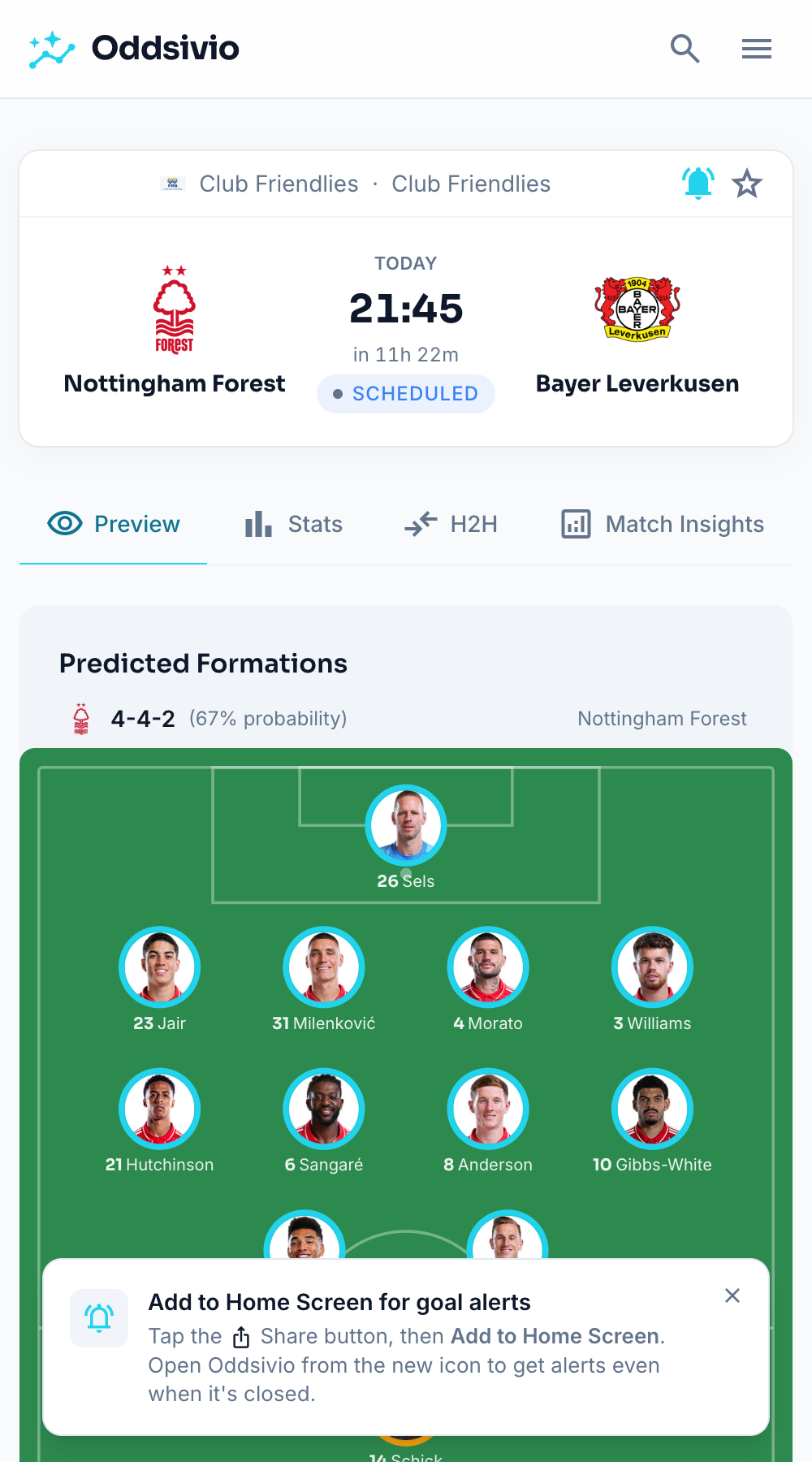
If you browse Oddsivio from a match page, we'll show you a small reminder card with exactly these instructions:
Part 2 — Android: install from the browser
Android is more relaxed — notifications work from the browser either way, but installing still gets you the app icon, full-screen launch, and more reliable delivery.
- Chrome: tap the ⋮ menu, top-right → Add to Home screen (on newer versions: Install app) → confirm.
- Samsung Internet: menu → Add page to → Home screen.
- Or just tap Install on the prompt Oddsivio itself shows on match pages — "Never miss a goal" — when your browser allows it.
On a desktop (Chrome or Edge), the same install lives behind a small icon at the right end of the address bar. Optional, but pleasant.
Part 3 — Turn on notifications
Now the actual switch. On your phone:
- Open Oddsivio from the home-screen icon and sign in.
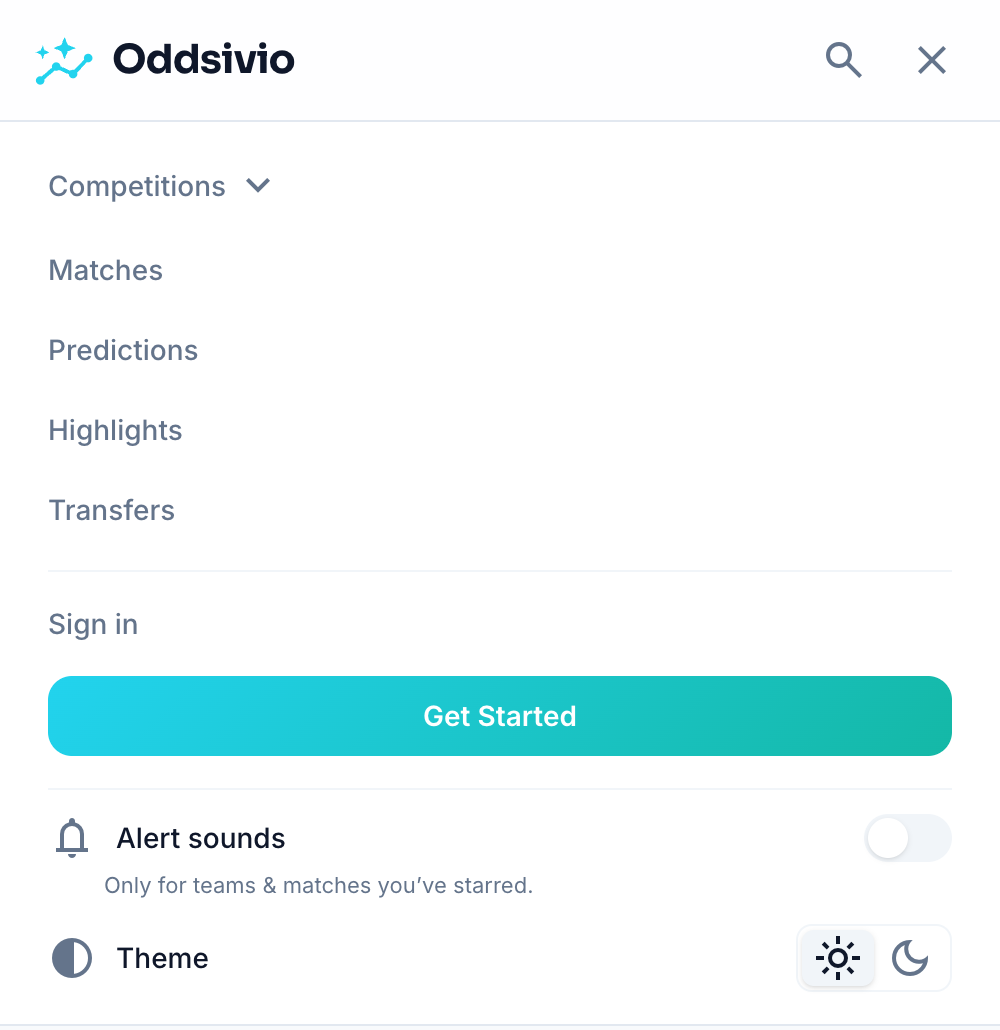
- Tap the ☰ menu button, top-right.
- Near the bottom of the menu, find Alert sounds and flip the switch on.
- Your phone will ask whether Oddsivio may send notifications — tap Allow. This is the moment that matters; everything else is preference.
If you weren't signed in, the switch opens a sign-in card first — "Sign in to enable goal sounds" — because without an account there are no stars to alert you about. Sign in, then flip it again.
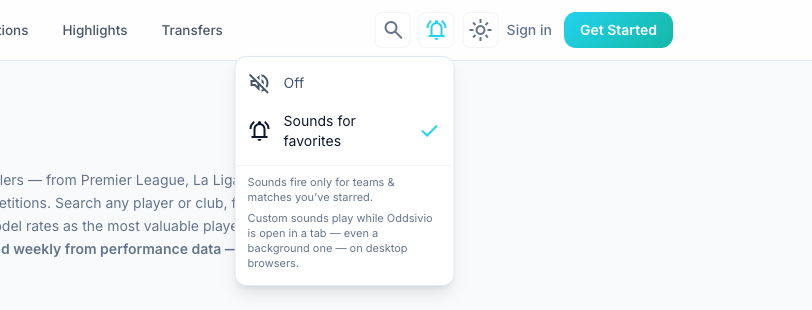
On desktop, the same control is the small bell/speaker icon in the top navigation: click it and choose Sounds for favorites.
Prove it works: the test button
Tap Customize under the switch (on desktop the settings panel opens right in the menu) and scroll to Send test notification. A few seconds later: "Sent to 1 device — check your notifications." If a banner arrived, you're done — every future goal by a starred team will do the same, even with your phone locked and Oddsivio closed.
Part 4 — Choose what's worth interrupting you
The same Customize panel lists every alert type with its own switch. Out of the box you get the essentials: Goals, Disallowed goals (VAR taketh away — you deserve to know), Kick-off, Full time, New videos (the goal clip, when it's ready to watch) and Transfers. Three more are off by default, waiting for volunteers: 15-min reminder before kick-off, Red cards, and Half-time.
Three refinements worth knowing:
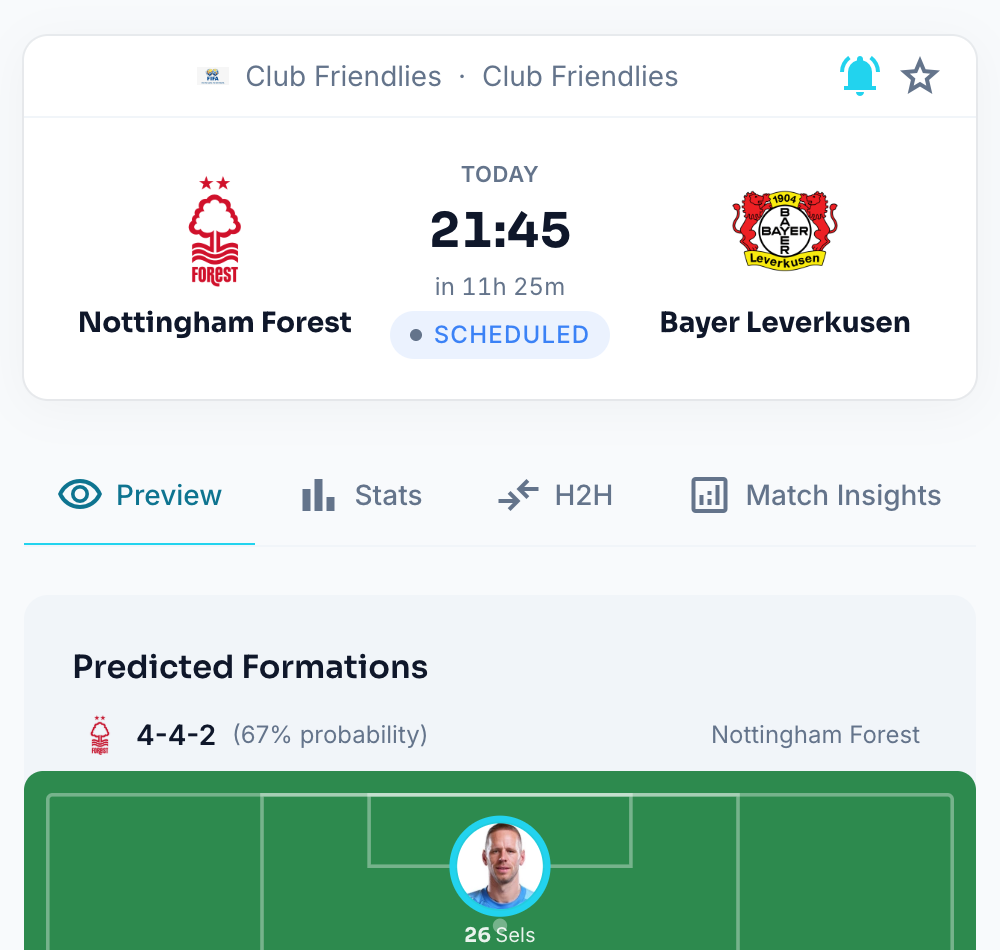
- Mute one match. On any match page there's a bell next to the star. Tap it and that match goes silent while everything else stays live — for when you've recorded the game and intend to watch it unspoiled.
- The volume slider controls the in-app chime and is deliberately per-device — your phone can be silent while your desktop chimes.
- Your alert hub lives at My Oddsivio → Alerts once you're signed in: the same event switches, plus the list of matches you've muted.
Troubleshooting
Honest list — these are the failure modes that actually occur, roughly in order of frequency.
"I installed it, but nothing arrives when the app is closed" (iPhone). Three checks, in order. First: are you opening Oddsivio from the home-screen icon? Notifications only reach the installed version — a Safari tab left open doesn't count. Second: iOS 16.4 or newer is required for web notifications; check Settings → General → Software Update. Third: iPhone Settings → Notifications → Oddsivio — make sure Allow Notifications is on, and that a Focus mode (Do Not Disturb, Sleep, Work) isn't quietly filtering it.
"The switch just opens a sign-in screen." Working as intended — alerts follow your starred teams, and stars need an account. Create one (free), verify the email, star a team, then flip the switch again.
"I can't star anything." The star stays disabled until your email address is verified. Find the confirmation email (check spam), click the link, reload.
"Everything is on, but no alert has ever fired." Did you star teams, or only a league? Starred competitions deliberately don't trigger alerts — star the teams themselves, or individual matches. And check the calendar: if your starred teams are between fixtures (pre-season, international break), silence is correct.
"Send test notification says: No subscription on this device yet." The permission exists but this device never finished registering. Do exactly what the message suggests: flip the alerts switch off and back on, approve the prompt, test again.
"The test says Sent, but no banner appeared." The delivery worked; your device is filtering. On the phone: OS notification settings for Oddsivio, and Focus/Do Not Disturb. On desktop: your operating system's focus assist / notification centre, then the browser's own notification permission for oddsivio.com.
"Notifications are blocked and the site won't even ask anymore." Once you've denied permission, browsers stop asking — you have to reopen the gate manually. iPhone: Settings → Notifications → Oddsivio. Android: Chrome → ⋮ → Settings → Site settings → Notifications → oddsivio.com → Allow. Desktop: the padlock icon in the address bar → Notifications → Allow. Then toggle alerts off and on once.
"I get the banner but no sound." Browsers only allow custom sounds after you've interacted with the page once — open the Customize panel and tap any ▶ test button; the panel will confirm "Custom sound ready." On iPhone specifically, a background tab can't play the custom chime — that's exactly what the home-screen install fixes, by giving you system banners instead. And check the volume slider: it's per-device, so a muted phone doesn't mean a muted laptop.
"It worked for weeks, then quietly stopped" (usually iPhone). Apple expires web-notification subscriptions it considers idle. Oddsivio detects this and re-registers automatically the next time you open the app from your home screen — so the fix is simply: open the app. If it's been a very long time, flip the switch off and on once.
"Too much noise." In order of severity: mute the specific match (the bell), switch off event types you don't care about (half-time was made optional for a reason), or flip the master switch off entirely — your stars and settings survive, waiting for the weekend.
Old devices. iOS below 16.4, or very old Android browsers, can't receive closed-app notifications at all. In-app alerts still work fully whenever the site is open — that part needs no permission and no install.
Two minutes, once
That's the whole system: icon on the home screen, one permission, stars on your teams. Everything after that is Oddsivio's problem — watching every match you care about so your phone only speaks when something actually happened. Uninstalling, should you ever want it, is as glamorous as it sounds: delete the icon, and flip the alerts switch off.
Install it now, star tonight's match, and send yourself the test notification — then put the phone back in your pocket. It'll tell you when.